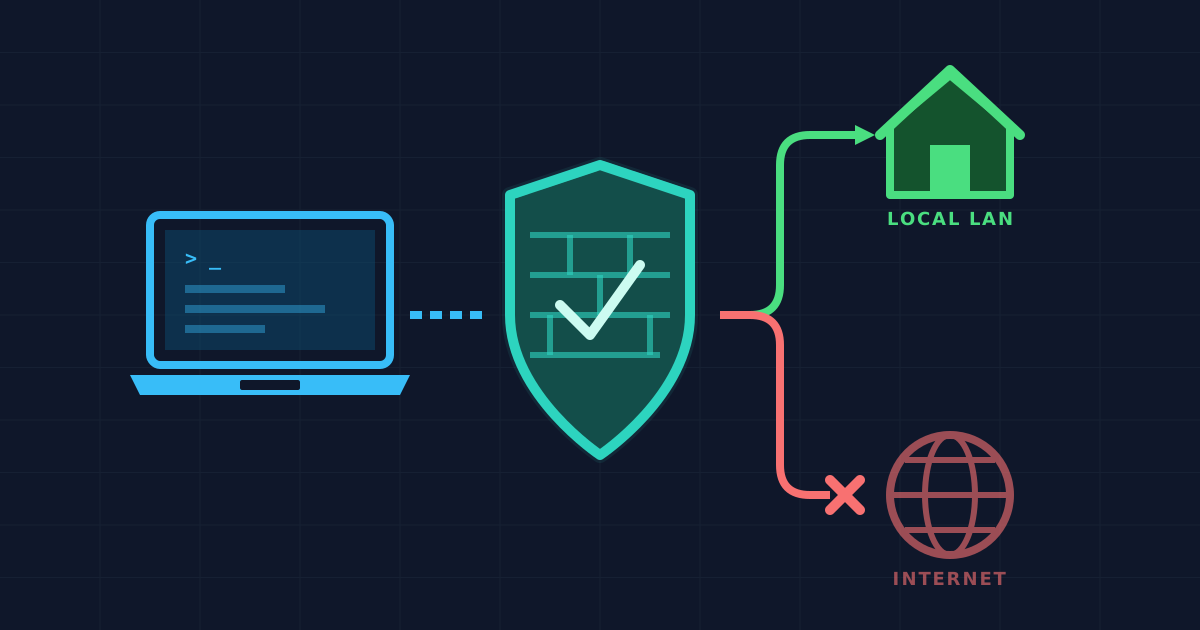

Ever wanted Jellyfin to stay off the internet? Or Chromium to only work on your local network? Maybe you want to test how an app behaves offline — without actually pulling the Ethernet cable.
This guide shows you how to block outbound internet for any specific app on Linux while keeping localhost and your home LAN fully functional.
I’ll cover five approaches, from a quick 2-minute wrapper script to a production-hardened Chromium setup that survives apt upgrades. Then I’ll show you the fundamental security flaw that most guides never mention — and what to use instead when it actually matters.
Why UFW?#
You might wonder why this guide uses UFW instead of raw nftables or iptables. The answer is simple: safety for beginners. If something goes wrong — you accidentally lock yourself out of the network, or an app stops working — you can just run sudo ufw disable or even sudo apt remove ufw to instantly restore full connectivity. With raw nftables, one wrong rule can leave you debugging kernel tables for an hour. UFW is a thin wrapper over iptables/netfilter — same power, much easier to roll back.
How Does This Actually Work?#
Every time a process opens a network socket, the Linux kernel stamps it with the process’s UID (User ID) and GID (Group ID). The firewall — specifically netfilter, which UFW sits on top of — can inspect those stamps on outgoing packets and decide: accept or reject.
That’s the entire trick:
- Mark the app’s processes with a specific UID or GID
- Write firewall rules that allow that UID/GID to reach LAN addresses but reject everything else
For services (Jellyfin, Syncthing), we match by UID because they already run as dedicated users. For desktop apps (Firefox, Chromium), we match by GID using a no-internet group.
graph TD
    A[Linux App] -->|Opens network socket| B(Linux Kernel)
    B -->|Stamps packet with UID & GID| C{Firewall
 UFW / netfilter}

    C -->|Matches 'no-internet' stamp?| D{Yes, it matches!}
    C -->|Normal app stamp?| E((Allowed to Internet))

    D -->|Going to Local LAN?| F((Yes: Allowed))
    D -->|Going to External IP?| G((No: REJECTED))

    classDef allow fill:#22c55e,color:black,stroke:#166534;
    classDef block fill:#ef4444,color:white,stroke:#991b1b;

    class E,F allow;
    class G block;
Which Approach Should You Use?#
| Your Situation | Best Option | Difficulty |
|---|---|---|
| “I just want to test this quickly” | Option A — Wrapper script | ⭐ Easy |
| Desktop GUI app (Firefox, KeePassXC) | Option B — setgid on ELF | ⭐⭐ Medium |
| System service (Jellyfin, Syncthing) | Option C — UID owner-match | ⭐ Easy |
| Chromium or Electron apps | Option D — dpkg-divert | ⭐⭐⭐ Advanced |
| You don’t use UFW | Option E — Direct iptables/nftables | ⭐⭐ Medium |
| Need real enforcement | Bypass-Proof Alternatives — Firejail / namespaces | ⭐⭐ Medium |
Quick Glossary#
| Term | Meaning | How to check |
|---|---|---|
| UID | User Identifier (numeric) | id -u username |
| GID | Group Identifier (numeric) | getent group groupname |
| EGID | Effective GID — the runtime GID the kernel actually uses for socket ownership | ps -eo egid,egroup,cmd |
| UFW | Uncomplicated Firewall — Debian/Ubuntu frontend for iptables | sudo ufw status |
sg | Run a command with a different primary group | sg groupname command |
dpkg-divert | Debian tool to relocate a package-managed file so your file can sit at the original path | dpkg-divert --list |
| conntrack | Connection tracking — lets the firewall allow replies to established connections | — |
| owner-match | iptables module that matches packets by the UID/GID of the process that created the socket | — |
Before You Start: Back Up Everything#
If you didn’t take a VM or system snapshot, you must back up your current firewall state. Take 30 seconds to save your current rules so you can easily revert them later:
sudo iptables-save > ~/iptables.before
sudo mkdir -p ~/ufw_rules_backup
sudo cp /etc/ufw/before.rules ~/ufw_rules_backup/before.rules.backup
sudo cp /etc/ufw/before6.rules ~/ufw_rules_backup/before6.rules.backup
If anything goes wrong:
sudo cp ~/ufw_rules_backup/before.rules.backup /etc/ufw/before.rules
sudo cp ~/ufw_rules_backup/before6.rules.backup /etc/ufw/before6.rules
sudo ufw reload
The Firewall Rules (The Core of Everything)#
Every option below ends up using the same firewall rules. The only difference is how you mark the app. Here’s what the rules look like — you’ll paste these into /etc/ufw/before.rules.
Where Exactly to Paste#
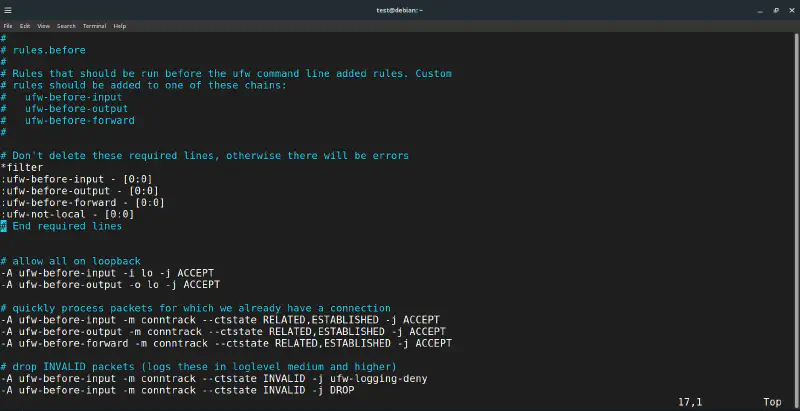
Open the file and look for the *filter section at the top:
*filter
:ufw-before-input - [0:0]
:ufw-before-output - [0:0]
:ufw-before-forward - [0:0]
← YOUR RULES GO HERE, right after these lines
Your file should initially look like this:
For Desktop Apps (GID Match)#
Once you paste your rules into the editor, it should look exactly like this:
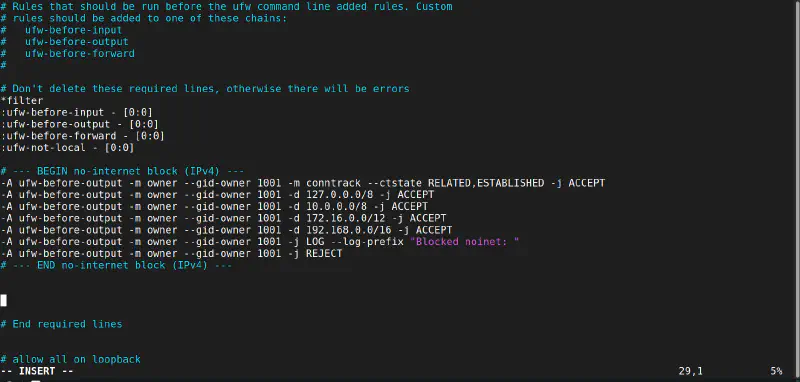
Replace GID with your actual numeric group ID:
# --- BEGIN no-internet block (IPv4) ---
-A ufw-before-output -m owner --gid-owner GID -m conntrack --ctstate RELATED,ESTABLISHED -j ACCEPT
-A ufw-before-output -m owner --gid-owner GID -d 127.0.0.0/8 -j ACCEPT
-A ufw-before-output -m owner --gid-owner GID -d 10.0.0.0/8 -j ACCEPT
-A ufw-before-output -m owner --gid-owner GID -d 172.16.0.0/12 -j ACCEPT
-A ufw-before-output -m owner --gid-owner GID -d 192.168.0.0/16 -j ACCEPT
-A ufw-before-output -m owner --gid-owner GID -j LOG --log-prefix "Blocked noinet: "
-A ufw-before-output -m owner --gid-owner GID -j REJECT
# --- END no-internet block (IPv4) ---
Do the same in /etc/ufw/before6.rules (use ufw6-before-output, allow ::1 and fe80::/10):
# --- BEGIN no-internet block (IPv6) ---
-A ufw6-before-output -m owner --gid-owner GID -m conntrack --ctstate RELATED,ESTABLISHED -j ACCEPT
-A ufw6-before-output -m owner --gid-owner GID -d ::1 -j ACCEPT
-A ufw6-before-output -m owner --gid-owner GID -d fe80::/10 -j ACCEPT
# Optional: uncomment for mDNS / DLNA / SSDP LAN service discovery
# -A ufw6-before-output -m owner --gid-owner GID -d ff00::/8 -j ACCEPT
-A ufw6-before-output -m owner --gid-owner GID -j LOG --log-prefix "Blocked noinet v6: "
-A ufw6-before-output -m owner --gid-owner GID -j REJECT
# --- END no-internet block (IPv6) ---
For Services (UID Match — /etc/ufw/before.rules)#
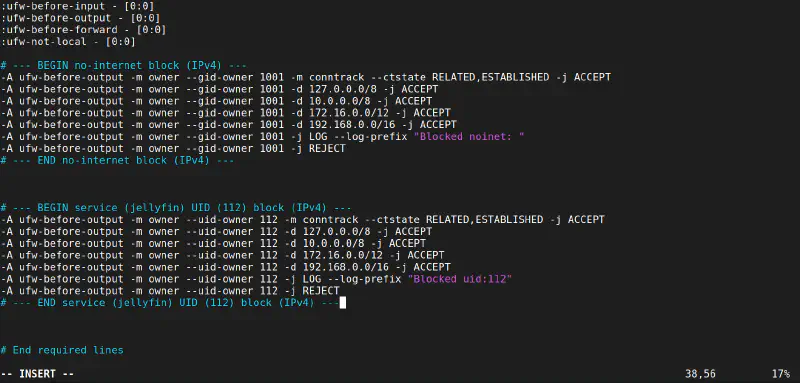
Same structure, but use --uid-owner with the service’s numeric UID:
# --- BEGIN service UID block (IPv4) ---
-A ufw-before-output -m owner --uid-owner UID -m conntrack --ctstate RELATED,ESTABLISHED -j ACCEPT
-A ufw-before-output -m owner --uid-owner UID -d 127.0.0.0/8 -j ACCEPT
-A ufw-before-output -m owner --uid-owner UID -d 10.0.0.0/8 -j ACCEPT
-A ufw-before-output -m owner --uid-owner UID -d 172.16.0.0/12 -j ACCEPT
-A ufw-before-output -m owner --uid-owner UID -d 192.168.0.0/16 -j ACCEPT
-A ufw-before-output -m owner --uid-owner UID -j LOG --log-prefix "Blocked uid: "
-A ufw-before-output -m owner --uid-owner UID -j REJECT
# --- END service UID block (IPv4) ---
And in /etc/ufw/before6.rules:
# --- BEGIN service UID block (IPv6) ---
-A ufw6-before-output -m owner --uid-owner UID -m conntrack --ctstate RELATED,ESTABLISHED -j ACCEPT
-A ufw6-before-output -m owner --uid-owner UID -d ::1 -j ACCEPT
-A ufw6-before-output -m owner --uid-owner UID -d fe80::/10 -j ACCEPT
-A ufw6-before-output -m owner --uid-owner UID -j LOG --log-prefix "Blocked uid v6: "
-A ufw6-before-output -m owner --uid-owner UID -j REJECT
# --- END service UID block (IPv6) ---
Why This Order?#
The rules are evaluated top-to-bottom, first match wins:
- RELATED,ESTABLISHED — Don’t break existing connections mid-stream
- Loopback (127.x) — App can still talk to localhost
- LAN ranges (10.x, 172.16.x, 192.168.x) — App can reach your home network
- LOG — Audit blocked attempts in
/var/log/kern.logor journalctl - REJECT — Everything else (the actual internet) gets blocked
Safe Way to Edit#
Always backup your original firewall rules to a safe, persistent location (like your root directory) before editing. Temporary files in /tmp/ are wiped upon every reboot!
Don’t edit the live file directly. Backup, copy to a temp file, edit, test, then apply:
# 1. Create a permanent backup
sudo cp /etc/ufw/before.rules /root/before.rules.backup

# 2. Copy to a temporary file for editing
sudo cp /etc/ufw/before.rules /tmp/before.rules.edit
sudo nano /tmp/before.rules.edit                          # paste your rules

# 3. Syntax check (safe, doesn't apply)
sudo iptables-restore --test < /tmp/before.rules.edit

# 4. Apply the rules
sudo mv /tmp/before.rules.edit /etc/ufw/before.rules
sudo chown root:root /etc/ufw/before.rules
sudo chmod 644 /etc/ufw/before.rules
sudo ufw reload
Option A: Quick Wrapper Script#
Time: 2 minutes · Best for: Testing, quick experiments
This is the fastest way. You create a tiny script that launches any app under a no-internet group.
Setup#
# Create the group
sudo groupadd -f no-internet
getent group no-internet    # note the GID (e.g., 1001)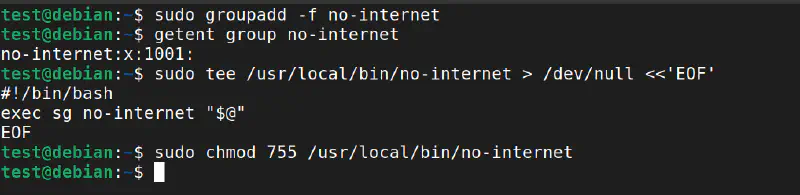
# Add your user to the group so 'sg' doesn't prompt for a password
sudo usermod -aG no-internet $USER
3. Create the wrapper script#
sudo tee /usr/local/bin/no-internet > /dev/null <<'EOF'
#!/bin/bash
exec sg no-internet "$@"
EOF
sudo chmod 755 /usr/local/bin/no-internet
Add the GID firewall rules to UFW and reload.
Usage#
no-internet firefox &
no-internet steam &
no-internet keepassxc &
Verify It Works#
# Should be BLOCKED:
sg no-internet -c 'curl -I -m 10 https://example.com' && echo "FAIL" || echo "BLOCKED ✓"

# Should still work:
sg no-internet -c 'curl -I -m 10 http://192.168.1.1' && echo "LAN works ✓" || echo "FAIL"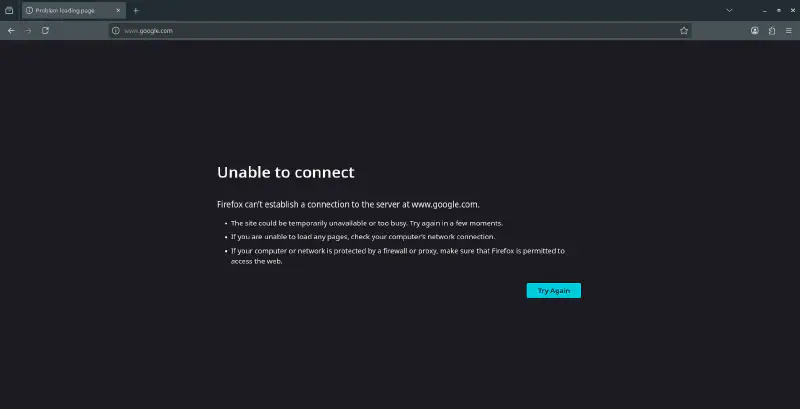
Downside: If you launch the app from the desktop menu, it won’t use the wrapper. You’d need to edit the .desktop file:
cp /usr/share/applications/firefox.desktop ~/.local/share/applications/
nano ~/.local/share/applications/firefox.desktop
# Change: Exec=firefox %u
# To:     Exec=/usr/local/bin/no-internet firefox %u
Option B: setgid on the Binary#
Time: 5 minutes · Best for: Desktop apps you always want restricted
Instead of a wrapper, you set the GID flag directly on the app’s binary. Every time it runs — from the menu, terminal, wherever — it automatically gets the no-internet group.
Find the Real Binary#
This is important. Many apps have wrapper scripts. You need the actual ELF binary (Executable and Linkable Format — the compiled program file that Linux actually runs):
which firefox                              # might be /usr/bin/firefox
readlink -f "$(which firefox)"             # resolves symlinks
file "$(readlink -f "$(which firefox)")"   # should say "ELF 64-bit"
If file says “shell script” or “Python script”, dig deeper — that script calls the real binary somewhere.
Apply setgid#
sudo chown root:no-internet /path/to/real/elf/binary
sudo chmod 750 /path/to/real/elf/binary
sudo chmod g+s /path/to/real/elf/binary    # the magic: setgid bit
Now every process spawned from this binary inherits EGID = no-internet, which the firewall matches.
Verify#
firefox & sleep 1
ps -eo pid,uid,egid,cmd | grep firefox
# EGID column should show your no-internet GID numberRollback#
sudo chmod g-s /path/to/real/elf/binary
sudo chown root:root /path/to/real/elf/binary
sudo chmod 755 /path/to/real/elf/binary
⚠️ Caveat: This doesn’t work on Snap or Flatpak apps — they run in sandboxes with their own network stack. For Flatpak, use Flatseal (GUI) to toggle off “Network” permissions, or run
flatpak override --user --unshare=network com.app.Name. For Snap, usesnap connections app-nameandsnap disconnect app-name:networkto revoke the network plug. Or install the app as a native.deb.
Option C: Service UID Match#
Time: 3 minutes · Best for: Daemons like Jellyfin, Syncthing, qBittorrent
Services already run as dedicated system users. You just match their UID in the firewall. This is the strongest of the five options because a service can’t change its own UID.
Find the UID#
id -u jellyfin # e.g., 112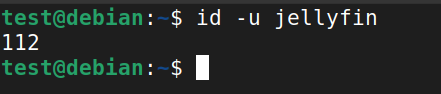
Add UID Rules to UFW#
Same as the GID rules above, but use --uid-owner 112 instead of --gid-owner. Paste into before.rules and before6.rules, then:
sudo ufw reload
Test#
# Internet should be blocked:
sudo -u jellyfin curl -I -m 10 https://example.com && echo "FAIL" || echo "BLOCKED ✓"

# LAN should work (reaches a local Python HTTP server):
sudo -u jellyfin curl -I -m 10 http://192.168.1.10 && echo "LAN works ✓" || echo "FAIL"The Ultimate Proof: LAN vs Internet#
One of the best ways to verify your setup is to try reaching an external site and a local IP in the same process. Here is the result of that test:
Don’t Forget: Allow Incoming on the Service Port#
If your UFW default is “deny incoming” (it should be), LAN clients can’t reach your service unless you explicitly allow the port:
sudo ufw allow from 192.168.0.0/16 to any port 8096 proto tcpFor Custom Services Without a Dedicated User#
sudo adduser --system --group --no-create-home --shell /usr/sbin/nologin myservice
sudo passwd -l myservice
id -u myservice    # use this UID in rules
Option D: dpkg-divert + Wrapper#
Time: 15 minutes · Best for: Chromium, Electron, multi-process apps
Note:
dpkg-divertis a Debian/Ubuntu tool. If you’re on Fedora, Arch, or another distro, you’ll need to manually relocate the binary instead — the firewall rules themselves are distro-agnostic.
Chromium is special. It spawns renderer processes, GPU processes, utility processes — all from different code paths. A simple setgid on one binary won’t catch them all.
The solution: use Debian’s dpkg-divert to relocate the real binary, then put a wrapper at the original path. Every invocation — menu, terminal, child processes — goes through your wrapper.
The Full Setup#
# 1. Create the group
sudo groupadd -f no-internet
getent group no-internet    # note the GID

# Add your user to the group so 'sg' doesn't prompt for a password
sudo usermod -aG no-internet $USER

# 2. Divert the real binary to a new location
sudo mkdir -p /usr/lib/chromium
sudo dpkg-divert --local --add --rename \
  --divert /usr/lib/chromium/chromium.distrib /usr/bin/chromium

# 3. Reinstall so the diverted file lands at the new path
sudo apt install --reinstall chromium

# 4. Lock down the real binary
sudo chown root:no-internet /usr/lib/chromium/chromium.distrib
sudo chmod 0750 /usr/lib/chromium/chromium.distrib

# 5. Put a shell wrapper at the original path
sudo tee /usr/bin/chromium > /dev/null <<'EOF'
#!/bin/bash
exec sg no-internet /usr/lib/chromium/chromium.distrib "$@"
EOF
sudo chmod 0755 /usr/bin/chromium
Add the GID firewall rules, reload UFW, and test.
Option D Variant: Compiled C Wrapper#
Instead of a shell wrapper, you can compile a minimal C binary. It avoids spawning an extra bash process and the binary isn’t human-readable (though strings will still reveal the path — see Security Limitations below).
Save as /tmp/sg-wrapper.c:
/* sg-wrapper.c — execv /bin/sg no-internet -- /usr/lib/chromium/chromium.distrib */
#define _GNU_SOURCE
#include <errno.h>
#include <stdio.h>
#include <stdlib.h>
#include <string.h>
#include <unistd.h>

int main(int argc, char *argv[]) {
    const char *group = "no-internet";
    const char *sg_path = "/bin/sg";
    const char *real_binary = "/usr/lib/chromium/chromium.distrib";

    int extra = argc - 1;
    /* count: sg_path + group + "--" + real_binary + extra_args + NULL */
    int sg_argc = 1 + 1 + 1 + 1 + extra + 1;
    char **sg_argv = calloc(sg_argc, sizeof(char *));
    if (!sg_argv) { fprintf(stderr, "calloc failed\n"); return 127; }

    int i = 0;
    sg_argv[i++] = (char *)sg_path;
    sg_argv[i++] = (char *)group;
    sg_argv[i++] = (char *)"--";
    sg_argv[i++] = (char *)real_binary;
    for (int j = 1; j < argc; ++j) sg_argv[i++] = argv[j];
    sg_argv[i] = NULL;

    execv(sg_path, sg_argv);
    fprintf(stderr, "execv(%s) failed: %s\n", sg_path, strerror(errno));
    /* free is technically unreachable if execv succeeds, but kept for completeness */
    free(sg_argv);
    return 126;
}
Compile and install:
gcc -O2 -s -o /tmp/sg-wrapper /tmp/sg-wrapper.c
sudo mv /tmp/sg-wrapper /usr/bin/chromium
sudo chown root:no-internet /usr/bin/chromium
sudo chmod 2751 /usr/bin/chromium    # setgid(2) + rwx(7) + r-x(5) + --x(1)
Surviving apt upgrade#
Package updates can overwrite your changes. Protect them:
# Tell dpkg to enforce ownership/permissions
sudo dpkg-statoverride --add root no-internet 0750 /usr/lib/chromium/chromium.distrib

# Create a script that reapplies permissions
sudo tee /usr/local/sbin/reapply-noinet.sh > /dev/null <<'EOF'
#!/usr/bin/env bash
set -euo pipefail
GROUP=no-internet
[ -e /usr/bin/chromium ] && chown root:$GROUP /usr/bin/chromium && chmod 2751 /usr/bin/chromium || true
[ -e /usr/lib/chromium/chromium.distrib ] && chown root:$GROUP /usr/lib/chromium/chromium.distrib && chmod 0750 /usr/lib/chromium/chromium.distrib || true
EOF
sudo chmod 755 /usr/local/sbin/reapply-noinet.sh

# Hook it into APT so it runs after every package update
sudo tee /etc/apt/apt.conf.d/99-reapply-noinet > /dev/null <<'EOF'
DPkg::Post-Invoke {"[ -x /usr/local/sbin/reapply-noinet.sh ] && /usr/local/sbin/reapply-noinet.sh";};
EOFRollback#
sudo rm -f /usr/bin/chromium
sudo dpkg-divert --remove --rename /usr/bin/chromium
sudo apt install --reinstall chromium
Option E: Raw iptables / nftables#
Best for: Systems that don’t use UFW, or if you prefer direct control.
iptables#
GID=1001  # your no-internet group ID

sudo iptables -I OUTPUT 1 -m owner --gid-owner $GID -m conntrack --ctstate RELATED,ESTABLISHED -j ACCEPT
sudo iptables -I OUTPUT 2 -m owner --gid-owner $GID -d 127.0.0.0/8 -j ACCEPT
sudo iptables -I OUTPUT 3 -m owner --gid-owner $GID -d 10.0.0.0/8 -j ACCEPT
sudo iptables -I OUTPUT 4 -m owner --gid-owner $GID -d 172.16.0.0/12 -j ACCEPT
sudo iptables -I OUTPUT 5 -m owner --gid-owner $GID -d 192.168.0.0/16 -j ACCEPT
sudo iptables -A OUTPUT -m owner --gid-owner $GID -j LOG --log-prefix "NOINTERNET: "
sudo iptables -A OUTPUT -m owner --gid-owner $GID -j REJECT
Persist with:
sudo apt install iptables-persistent
sudo netfilter-persistent savenftables#
Add to /etc/nftables.conf:
table inet lanlock {
  chain output {
    type filter hook output priority 0;
    meta skgid 1001 ct state related,established accept
    meta skgid 1001 ip daddr 127.0.0.0/8 accept
    meta skgid 1001 ip daddr 10.0.0.0/8 accept
    meta skgid 1001 ip daddr 172.16.0.0/12 accept
    meta skgid 1001 ip daddr 192.168.0.0/16 accept
    meta skgid 1001 ip6 daddr ::1 accept
    meta skgid 1001 ip6 daddr fe80::/10 accept
    meta skgid 1001 counter log prefix "NOINTERNET: "
    meta skgid 1001 drop
  }
}
sudo nft -f /etc/nftables.conf
sudo systemctl enable --now nftablesThe Security Flaw Nobody Talks About#
Now that you know how to set this up, let’s talk about when it’s actually enough — because the GID-based approach (Options A, B, and D) has a fundamental bypass that most guides never mention.
The Problem: EGID vs Supplementary Groups#
The firewall’s --gid-owner match checks the process’s EGID (Effective Group ID) — not its supplementary group list. Here’s what that means in practice:
| How the app is launched | Process EGID | Firewall matches? | Internet? |
|---|---|---|---|
Via wrapper (sg no-internet ...) | no-internet (1001) | ✅ Yes | ❌ Blocked |
Directly (/usr/lib/chromium/chromium.distrib) | User’s primary group (1000) | ❌ No | ✅ Full access |
When a user runs a binary directly, their primary group becomes the EGID. The no-internet supplementary group membership is irrelevant to the firewall.
graph TD
    A[User wants to run Chromium]

    A -->|Path 1: Uses Wrapper Script
'sg no-internet'| B[Process EGID becomes 1001
'no-internet' group]
    A -->|Path 2: Runs Binary Directly| C[Process EGID remains 1000
User's primary group]

    B -->|Traffic hits Firewall| D{Firewall sees GID 1001}
    C -->|Traffic hits Firewall| E{Firewall sees GID 1000}

    D --> F[Internet BLOCKED]
    E --> G[Internet ALLOWED
 Bypass Successful!]

    style F fill:#ef4444,color:white,stroke:#991b1b;
    style G fill:#f59e0b,color:black,stroke:#b45309;
And there’s a catch-22: sg (which the wrapper uses) requires the user to be a member of the no-internet group. But if they’re a member, they also have permission to execute the chmod 0750 binary directly — bypassing the wrapper entirely.
“What If I Hide the Binary Path?”#
You might think: “I’ll compile the wrapper as a C binary so users can’t read the script to find the real path.” That doesn’t work either:
| Attempt | Why it fails |
|---|---|
| Compiled C wrapper | strings /usr/bin/chromium reveals the embedded path |
| Random filename | ps aux and /proc/PID/exe expose it at runtime |
| setgid on the binary itself | Chromium and Firefox refuse to run with setgid (browser security feature) |
So When IS the GID Approach Good Enough?#
- ✅ Self-discipline — you want YOUR OWN app to stop phoning home (telemetry, metadata downloads, auto-updates)
- ✅ Services and daemons — Option C uses UID matching, which IS unbypassable since processes can’t change their own UID
- ✅ Non-technical users — people who won’t think to look for the diverted binary
When You Need Something Stronger#
- ❌ Technical users who actively want to bypass your restrictions
- ❌ Multi-user machines where you’re enforcing policy
- ❌ Any scenario where “security through obscurity” isn’t acceptable
For those cases, keep reading.
Bypass-Proof Alternatives (Not-Tested By Me)#
When the GID approach isn’t enough, here are three methods that provide real, kernel-enforced isolation.
Note: I haven’t personally tested these alternatives end-to-end. They’re included for completeness based on documentation and community guides. If you try any of these and find issues (or get them working), feel free to reach out.
Alternative 1: Separate User + UID Match#
Run the app as a completely separate user. UID matching cannot be bypassed — a user can’t change their own UID.
# Create a restricted user
sudo adduser --disabled-password --gecos "" --shell /usr/sbin/nologin chromium-user
sudo passwd -l chromium-user
id -u chromium-user    # use this UID in UFW rules (same format as Option C)

# Allow X11 display access
xhost +SI:localuser:chromium-user

# Launch
sudo -u chromium-user chromium
Tradeoffs: You lose your keyring, D-Bus session, bookmarks, and cookies from your main user. Wayland compositors may block other users entirely. But the network restriction is absolute.
Alternative 2: Firejail (Easiest True Isolation)#
Firejail uses kernel network namespaces under the hood. No firewall rules needed — the app physically cannot see the external network.
sudo apt install firejail

# No network at all — this works reliably
firejail --net=none chromium
⚠️ My experience:
firejail --net=noneworks perfectly — the app has zero network access. However, I was unable to get LAN-only mode working using the--netfilterapproach below. The app either had full internet or no network at all. I’m including the theoretical setup for reference, but your mileage may vary.
LAN-only (theoretical — did not work for me):
firejail --netfilter=/etc/firejail/lan-only.net chromiumCreate /etc/firejail/lan-only.net:
*filter
:INPUT ACCEPT [0:0]
:FORWARD ACCEPT [0:0]
:OUTPUT DROP [0:0]
-A OUTPUT -d 127.0.0.0/8 -j ACCEPT
-A OUTPUT -d 10.0.0.0/8 -j ACCEPT
-A OUTPUT -d 172.16.0.0/12 -j ACCEPT
-A OUTPUT -d 192.168.0.0/16 -j ACCEPT
-A OUTPUT -m state --state RELATED,ESTABLISHED -j ACCEPT
COMMIT
In theory, Firejail runs the app as your own user, so bookmarks, cookies, and desktop integration should all work normally. The network restriction is enforced at the kernel level and cannot be bypassed from inside the sandbox.
Alternative 3: Network Namespaces (Manual, Full Control)#
For maximum control, create a network namespace directly. No extra packages needed.
# Create a namespace with no external network
sudo ip netns add no-inet

# Run the app inside it
sudo ip netns exec no-inet sudo -u $USER chromium

# Optional: Add LAN-only access via a veth pair
sudo ip link add veth-host type veth peer name veth-jail
sudo ip link set veth-jail netns no-inet
sudo ip addr add 192.168.100.1/24 dev veth-host
sudo ip link set veth-host up
sudo ip netns exec no-inet ip addr add 192.168.100.2/24 dev veth-jail
sudo ip netns exec no-inet ip link set veth-jail up
sudo ip netns exec no-inet ip link set lo up
Quick Comparison#
| Threat Model | Best Solution |
|---|---|
| Block your own apps from phoning home | GID wrapper (Option A/D) — simple, good enough |
| Block a daemon/service | UID owner-match (Option C) — unbypassable |
| Restrict technical/untrusted users | Separate user + UID match (Alt 1) |
| True network sandbox, easy setup | Firejail (Alt 2) |
| Full manual control, no dependencies | Network namespace (Alt 3) |
| Enterprise/production | AppArmor + containers |
Troubleshooting#
“sg: no such group”
→ Group doesn’t exist yet. Run sudo groupadd -f no-internet.
Internet is still working after adding rules
→ Double-check the numeric UID/GID in your rules matches reality. Make sure you pasted the block right after the :ufw-before-output line, not at the bottom. Run sudo ufw reload.
UFW reload fails
→ Syntax error in your rules. Test before applying: sudo iptables-restore --test < /etc/ufw/before.rules. If it fails, restore your backup.
It works, but breaks after reboot
→ You might have iptables-persistent installed, which conflicts with UFW. Remove it: sudo apt remove iptables-persistent. Let UFW handle everything.
setgid isn’t working
→ You probably applied it to a shell script wrapper, not the real ELF binary. Use readlink -f $(which app) and file to find the actual binary.
Snap/Flatpak apps are unaffected
→ They run in sandboxes with their own network stack. Flatpak: Use Flatseal (GUI) to toggle off “Network” permissions, or run flatpak override --user --unshare=network com.app.Name. Snap: Use snap connections app-name and snap disconnect app-name:network to revoke the network plug. Or install the app as a native .deb.
DNS seems to leak
→ systemd-resolved runs on 127.0.0.53. Since we allow 127.0.0.0/8, DNS resolves even for blocked apps — but the actual connections still get rejected. If you want to block DNS too, remove the loopback allow rule and add -d YOUR_LAN_DNS_IP -j ACCEPT instead.
Testing Checklist#
After setting up any option, run through this:
# 1. Group exists and GID is correct?
getent group no-internet
# Expected: no-internet:x:<GID>:

# 2. Service UID correct? (Option C only)
id -u jellyfin
# Expected: numeric UID, e.g., 107

# 3. File ownership and permissions correct? (Options B/D)
stat -c "%n: %U %G %a" /usr/lib/chromium/chromium.distrib /usr/bin/chromium
# Expected: real binary → root:no-internet 0750, wrapper → per your policy

# 4. Running processes have correct EGID/UID?
ps -eo pid,ppid,uid,euid,gid,egid,cmd | egrep 'chromium|jellyfin|firefox'
# Look for: EGID == no-internet GID (Options A/B/D) or UID == service UID (Option C)

# 5. Internet blocked?
sg no-internet -c 'curl -I -m 10 https://example.com' && echo "FAIL" || echo "BLOCKED ✓"
# For services:
sudo -u jellyfin curl -I -m 10 https://example.com && echo "FAIL" || echo "BLOCKED ✓"

# 6. LAN still works?
sg no-internet -c 'curl -I -m 10 http://192.168.1.1' && echo "LAN works ✓" || echo "FAIL"

# 7. Check firewall logs (if LOG rules added)
sudo journalctl -k --since "10 minutes ago" | grep -i 'Blocked\|NOINTERNET'
Emergency Rollback#
If something goes wrong, these commands restore everything:
# Restore UFW backups
sudo cp /root/before.rules.bak /etc/ufw/before.rules
sudo cp /root/before6.rules.bak /etc/ufw/before6.rules
sudo ufw reload

# If you need immediate connectivity recovery
sudo iptables -I OUTPUT 1 -m owner --gid-owner <GID> -j ACCEPT
# Remove when fixed:
sudo iptables -D OUTPUT -m owner --gid-owner <GID> -j ACCEPT

# Last resort — disable the entire firewall
sudo ufw disable
# Fix your rules, then: sudo ufw enable

# Undo dpkg-divert (Option D)
sudo dpkg-divert --remove --rename /usr/bin/chromium
sudo apt install --reinstall chromium
Standalone Rollback Script#
Save as /usr/local/sbin/rollback-noinet.sh for emergencies:
#!/usr/bin/env bash
set -euo pipefail

# Restore UFW before.rules backups
[ -f /root/before.rules.bak ] && sudo cp /root/before.rules.bak /etc/ufw/before.rules
[ -f /root/before6.rules.bak ] && sudo cp /root/before6.rules.bak /etc/ufw/before6.rules

# Reload UFW
sudo ufw reload || true

# Optional: temporarily allow marker GID (uncomment and replace <GID>)
# sudo iptables -I OUTPUT 1 -m owner --gid-owner <GID> -j ACCEPT

echo "Rollback applied. Verify with: sudo ufw status && curl -I https://example.com"
sudo chmod 700 /usr/local/sbin/rollback-noinet.shWatch it in Action: Full GUI Demo#
This 75-second walkthrough shows the system handling a real-world browser (Google Chrome). You’ll see:
- The Block: Chrome attempting to reach Google and failing while the firewall is active.
- LAN Routing: Chrome successfully loading a local technical dashboard (LAN) while all external traffic remains blocked.
- The Control: Toggling
ufw disableto instantly restore access andufw enableto re-lock the app.
Summary#
The GID-based approach (Options A–E) is a clean, elegant way to restrict app networking — and it’s good enough for most personal use cases. If you want to stop Jellyfin from downloading metadata, or prevent a game from phoning home, it works perfectly.
But if you need real enforcement against users who know their way around Linux, the GID approach has a fundamental EGID bypass. For those cases, use UID matching (unbypassable for services), Firejail (easiest for desktop apps), or network namespaces (maximum control).
The approach you choose depends on your threat model. Be honest about what you’re defending against, and pick accordingly.
Tested on Debian 13 (Trixie) with UFW. Should work on any Debian/Ubuntu-based distro with kernel 4.x+.